Test Scripts 101: How To Create and Run An Automated Test
Anatomy of an Automated Test Script
Introduction
What is a test script? There are many definitions, but we’ll focus on the one that seems to be the most common in the field and the most practical for today’s QA professionals:
A test script is code that can be run automatically to perform a test on a user interface. The code will typically do the following one or more times:
(1) Identify input elements in the UI, (2) Navigate to the required UI component, wait and verify that input elements show up, (3) Simulate user input, (4) Identify output elements, (5) Wait and verify that output elements display the result, (6) Read the result from the output elements, (7) Assert that output value is equal to expected value, and (8) Write the result of the test to a log.
For example, if you want to automatically test the login function on a website, your test script might do the following:
- Specify how to locate the “username” and “password” fields in the login screen – say, by their CSS element IDs.
- Load the website homepage, click on the “login” link, verify that the Login screen appears and the “username” and “password” fields are visible.
- Type the username “david” and password “16485”, identify the “Submit” button and click it.
- Specify how to locate the title of the Welcome screen that appears after login – say, by its CSS element ID.
- Wait and verify that the title of the Welcome screen is visible.
- Read the title of the Welcome screen.
- Assert that the title text is “Welcome David”.
- If title text is as expected, record that the test passed. Otherwise, record that the test failed.
You’ll notice we added a broken line after step #3, to separate between two important parts of the test script:
- The simulation part of the script – steps 1–3 are responsible for simulating the user’s behavior.
- The validation part of the script – steps 4–8 are responsible for checking, after we simulated some user behavior, if the system worked properly.
Using these basic elements of GUI automation, simulation and validation, you can test even very complex multistep operations. In complex test scripts these elements will repeat themselves several times, each time for a different part of the user’s workflow.
Now that we understand what a test script is, there are a few questions remaining:
- How do you create the test script?
- Do you need to write code, and what kind of code?
- How do you run the test script?
- How can you create enough test scripts to achieve good test coverage?
We’ll cover the answers to these questions in the sections below.
How Do You Create a Test Script?
There are a few different ways to create automated testing scripts: record/playback, keyword/datadriven scripting, and directly writing code.
Record/Playback
You are probably familiar with tools like HP Quick Test Professional (now called UFT), which help QA professionals create automated tests. With these tools, testers can perform a set of user actions on an application or website, “record” those user actions, and generate a test script that can “play back” or repeat those operations automatically.
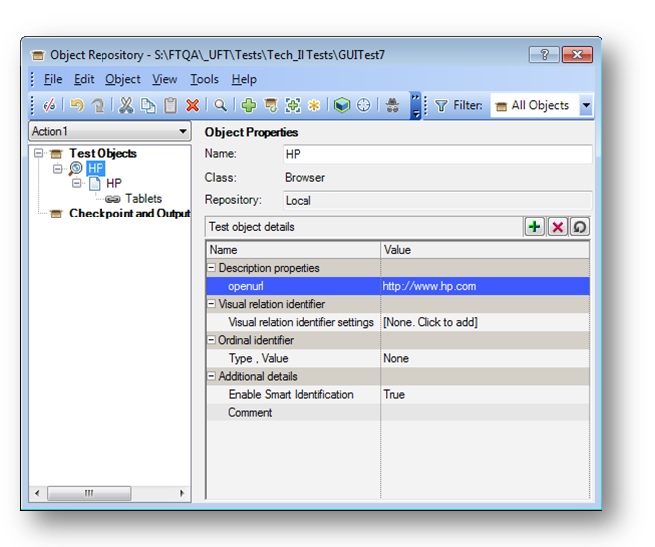
QTP and similar systems identify objects in the user interface being tested, and enable testers to view the hierarchy of objects in the application under test. It is possible to edit and modify tests by selecting from these objects and specifying user actions that should be simulated on them.
It’s important to note:
- The simulation part of the script is relatively easy to capture with record/playback systems. You perform the relevant user actions and the system creates a script.
- The validation part is more difficult. After simulating the user actions, for each and every element you want to check on the screen, you need to explicitly add steps to your script. These steps will identify these elements in the interface, and compare their values to expected values.
For example, if you want to test that the welcome screen says “Welcome David”, and also that 10 items of information are correctly displayed below, these are 11 different validations and you will need to add steps to your script to check each one of them.
You cannot record these validations because they are not user actions you need to define them one by one using the automation system’s GUI.
Record/playback systems do generate test scripts behind the scenes but they are typically written in simple scripting languages like VBScript. Advanced users can (and typically will) go in and manipulate the code directly to finetune how a test behaves.
For a comprehensive list of guided test automation systems like QTP, see Wikipedia’s list of GUI testing tools and list of web testing tools .
Keyword/Data-Driven Scripting
Some testing tools make it possible to define a set of “keywords” which specify user actions. Testers can specify these keywords and a script will be generated that performs the desired actions on the system under test.
For example, the keyword “login user” might designate that the script should navigate to the login screen and enter certain user credentials. A developer has to write code behind the scenes that implements this functionality, and then a tester can provide a table like this:
| Username | Password | |
|---|---|---|
| login user | david | 16485 |
Or lines of text like this:
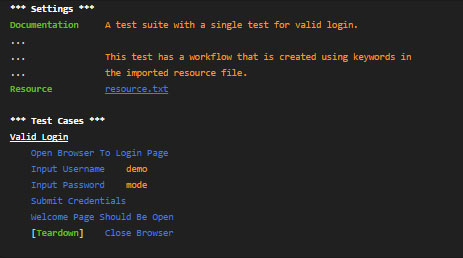
Open Browser To Login Page
Input Username david
Input password 16485
Submit Credentials
And a script will be generated that knows how to navigate to the login screen, type in the data provided (username “david” and password “16485”) and click Submit.
Here too there is a distinction between the simulation and validation parts of the test script:
- The simulation part of your script (or any part of it) will be handled by one keyword that defines the user action e.g. “login user” in the example above.
- The validation part of your script will require multiple keywords and multiple values of expected data for each part of the UI you want to validate. If you want to test several different parts of the UI (e.g. the Welcome page title and information displayed for the user on that page), you’ll have a separate keyword for each one verify customer ID, verify date last logged in, verify account type, etc.
From the tester’s perspective this is not a big deal because you’re just using the keywords, and don’t need to deal with the code. However, this means you will have relatively few validation options at your disposal, and adding more will require help from development.
A variant of this approach, called data-driven testing, is when the same test needs to be repeated numerous times with different data values or different user operations. For example, in an eCommerce system you might want to perform a purchase numerous times, each time selecting a different product, different shipping options, etc, and observe the result of every test. The tester can provide a table indicating which operations will be performed, and which data should be input in each iteration of the test, and this helps to specify a complex set of tests with very little effort.
The advantage of keyword/data driven testing is that the code that simulates user operations is not repeated again and again in every test script, rather it is defined in one place, and a tester can use it as a building block in multiple test scripts. This make it easier to define test scripts without needing to write code, and also reduces the maintenance required for the test scripts as the application under test changes.
A well-known keyword-driven testing tool is the open source Robot Framework. Many other test automation frameworks provide some keyword-driven or data-driven testing functionality.
Below is an example of how a login operation is specified using keywords in Robot Framework:
Writing Code in a “Real” Programming Language
A common way of creating test scripts is to directly write code in a programming language like Java, C++, PHP or Javascript. Often this will be the same programming language used to write the application that is being tested.
A few common frameworks that allow you to write test scripts in almost any programming language are Selenium (for web applications), Appium (for mobile), and Microsoft Coded UI (for Windows applications).
These and similar frameworks provide special commands you can use in a test script to perform operations on the application under test, such as identifying screen elements, selecting options from menus, clicking, typing, etc.
Here too there is a distinction between simulation and validation:
- The simulation part of the script can be automated using the built-in commands of the automation framework. Once you know the language this is quite easy, because a framework like Selenium offers one-line commands to do object selection, clicking, waiting, or any other operation in the user interface.
- The validation part of the script is more complex. Selenium can help with locating the interface objects that represent the output of the system. But it does not support “assertions”, meaning you need to write your own code to check if the values are in fact the expected values. There might be complex logic around that, for example if the output is a price in an eCommerce system, you need to reference multiple business rules to see what is the right price in each case.
In addition, unlike the simulation code which you develop and maintain only once per user action, validation code needs to have multiple parts for each and every interface element you want to test e.g. verifying title of Welcome page, customer ID, last logged in, account type and so on. For each of these you need to identify the relevant interface objects in the code, extract their value and write logic that compares them to expected values.
For this reason, in many test scripts the validation part accounts for over 80% of the code.
By the way, most test automation frameworks, including Selenium and Microsoft Coded UI, also provide an option for record/playback scripting, like in HP QTP. The difference is that the primary way of working with these frameworks is directly writing the test script code, and that they use “real” programming languages and not simplified scripting languages.
The record/playback functionality is often seen as a way to start for beginners, but the expectation is that eventually the advanced user will write the code directly without relying on record/playback.
Do You Need to Write Code, and What Kind of Code?
If you read the previous section, it should be clear that the answer depends on the way you chose to create the test script:
- Record/playback if you recorded user actions and had your script automatically generated, in principle you don’t need to write code. But in practice, very often you’ll need to go into the code to fix things that go wrong or fine-tune the automation behavior. But this is much easier than writing a test script from scratch, because you already have the code in front of you, and the scripts are typically coded in a simplified programming language such as VBScript.
- Keyword/data driven scripting in this case there is a clear separation between testers and developers. Testers define the tests using keywords without being aware of the underlying code. Developers are responsible for implementing test script code for the keywords, and updating this code as required. So if you work in this methodology, very likely you do not need to worry about code. But you will be highly reliant on development resources for any new functionality you want to test automatically.
- Writing code in a “real” programming language if you take this route, you will typically still have the ability to record/playback and generate a simple script. But eventually you will have to go beyond record/playback and learn how to code scripts directly. It’s important to realize that you can choose your programming language even if your application is written in Java, it doesn’t mean you need to write test scripts in Java which can be difficult to learn. You can just as well write your scripts in an easier language like Javascript or Ruby (or any language you choose) and they will be able to execute against the Java application.
How Do You Run the Test Script?
Test scripts are run by automation frameworks (sometimes called “test harnesses”). We provided several examples of such frameworks above HP QTP, Selenium, Appium, and Robot Framework. These kinds of frameworks know how to take a script written according to their specifications load up a user interface, actually simulate the user actions in the interface, and report on the result.
The test scripts you write will have to conform to the test framework you are using. Typically you can’t produce a “generic” test script and run it on any test automation system, nor can you easily port your tests from one system to another.
Here is how you will actually run the tests:
- In a GUI-based test framework like HP QTP, you will select the test from a list and click a button to run it, or use the GUI to schedule tests to run at various times.
- In a code-based test framework like Selenium, you will open up the code of the test script in your IDE, compile and run it. When the code executes, it will activate parts of the test framework that will open up the interface under test and perform the required actions on it.
- In a continuous integration environment for example, if your developers build their software automatically using a tool like Jenkins or Teamcity, there may be automatic test scripts run as part of the build process. In this case, every time a new build of the software is created, certain automated tests of the user interface will be run and the result will be reported as part of the build results. Typically, only lightweight tests such as unit tests are run as part of the build process, and user interface test scripts which are “heavier” and take more time, are run infrequently or only in special cases.
The Vicious Cycle: Authoring Scripts, Maintenance Coverage
Once you get into automated testing with scripts, you quickly realize that authoring and maintaining scripts is very time consuming. No matter which method or tool you use to build your scripts, you are likely to run into the following vicious cycle:
- You need to build more scripts to cover more parts of your application. You can only automatically test a feature if you create a script for it and make sure it works.
- The more scripts you have the longer it takes to maintain them every time the application changes, you need to revisit your scripts to make sure they still work as expected, because they are closely tied to specific interface elements.
- You need to cut down the number of scripts because you don’t have enough time to author and maintain all of them.
- Your test coverage suffers because you’re not testing important parts of the application, and this creates pressure to build more scripts
At the end of the day, you will find that your test coverage is limited by the time you have to author and maintain your scripts (or by your access to development resources to help you build your scripts).
QA professionals are measured on test coverage our main goal is to test as many important features as possible to reveal as many defects as possible. Automated testing was supposed to help with that by testing more in less time. But most QA teams find that they are able to test only a small fraction of the functionality with their automated testing scripts.
Simplifying Test Scripts
Think about it if you could make test scripts much simpler and easier to maintain, you could build many more test scripts in less time, and have enough time to maintain them. You’d have higher test coverage, discover more defects automatically and make everyone happy!
How do you simplify your test scripts? Let’s go back to our original distinction between two parts of the test script:
- The simulation part of the test script is relatively simple a predefined set of user operations.
- The validation part of the script is much more complex, because you need to add steps to your script for every user interface element you want to validate, and define logic that compares the system’s actual output to expected output.
It’s always possible to simplify your script by doing less validation but that’s a cop out. If you already have a test script running, not checking a few more parts of the interface under test is a shame. But the more you validate, the bigger your script gets and the more time is needed to maintain it.
That’s where we come in. We at Applitools built Applitools Eyes, a practical tool that does visual testing which handles the validation part of a test much more easily than you can do with ordinary scripts. A test script can do only the simulation part, and then call the Applitools API to perform the validation part with no code (eliminating steps 4 through 8 in all your test scripts).
Here’s how Applitools Eyes works in a nutshell:
- We record an initial screenshot of the user interface when it is functioning correctly (called a “baseline”).
- After user actions are simulated, we capture another screenshot of the application under test, and compare it to the baseline.
- It is possible to view all the differences between the current screen under test and the “baseline” representing the correct functionality these are potential bugs.
Visual UI testing is a different approach that has two major benefits:
- Validation does not require any code it happens at the click of a button, and is much easier to maintain.
- One validation step for all UI elements on the screen in the screenshot above, if you wanted to check that the ad at the top was appearing, that the image on the top-right is aligned correctly, that the slider at the mid-right works correctly, etc., you would have to create steps in your script that check each of these on its own. With visual UI testing, you can check all these UI elements and many more with one screenshot. So for this UI screen, testers saved possibly hundreds of lines of test script code.
Visual UI testing can prevent the vicious cycle you can get much more test coverage without adding many more lines of code to your test scripts, and without increasing the time to author and maintain your scripts.
Most importantly, with visual UI testing you will deal with much less code and focus on what you do best stamping out bugs. Give it a try for free!